How to add a webcam frame in OBS: frame size and rounded corners (2026)
Setting up a webcam frame for your stream: placing a PNG frame over the camera, cropping, rounded corners and circle cams with the Image Mask filter, animated frames and the most common mistakes.
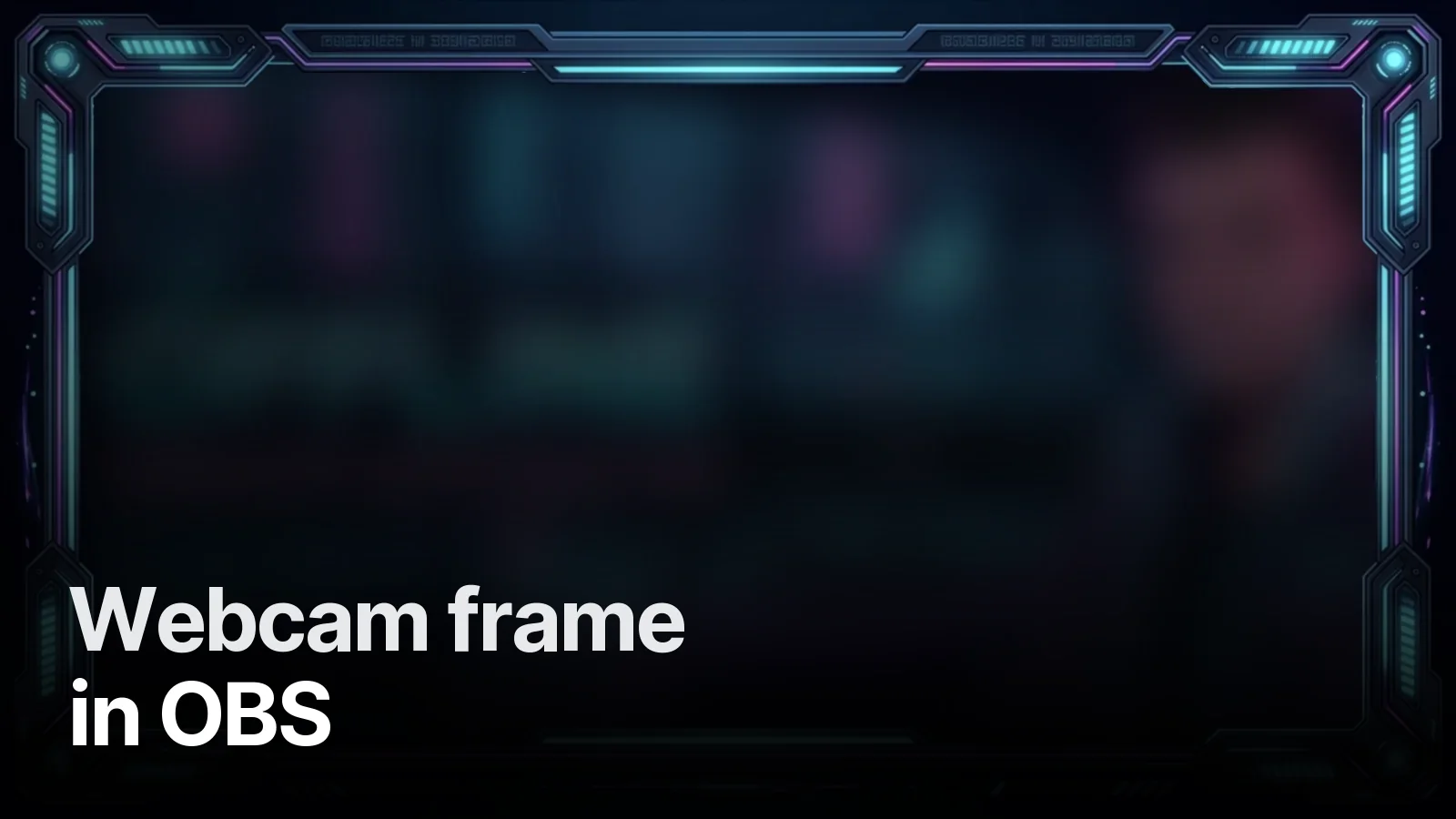
To add a webcam frame in OBS, add your camera with Video Capture Device, put the transparent-centre PNG frame on top as an Image source, scale the camera to fit the frame's window and crop the overflow. For rounded corners or a circle cam, put an Image Mask filter on the camera.
Sizes
| Piece | Value |
|---|---|
| Canvas | 1920×1080 |
| Camera window | 480×270 – 640×360 (16:9) |
| Frame PNG | Transparent centre, 12–30 px border |
| Animated frame | Transparent WebM, 5–10 s loop |
On vertical (TikTok/Shorts) streams the camera window moves to the top third; for vertical: TikTok LIVE stream pack.
Step by step (OBS Studio)
- Sources →
+→ Video Capture Device → pick your camera. - Sources →
+→ Image → pick the frame PNG. - In the source list, keep the frame above the camera (drag it up).
- Scale the camera 4–6 px larger than the frame window so no gap shows at the edges.
- Crop the excess with Alt + drag, or Filters → Crop/Pad.
- Select both sources → right-click → Group, so frame and camera move together.
- To reuse the group in other scenes: right-click → Copy → Paste (Reference) in the other scene.
Rounded corners and circle cams
- Right-click the camera → Filters.
- Effect Filters →
+→ Image Mask/Blend. - Type: Alpha Mask (Alpha Channel).
- Path: a mask PNG where white shows and black/transparent hides (circle or rounded rectangle, same ratio as the camera window).
- Put the frame on top of the masked camera.
The mask and the frame should come from the same design file so the corner radii match exactly.
Frame design notes
- Thin border, strong corners: the frame should lift the face, not the camera. A thick border covers part of the game.
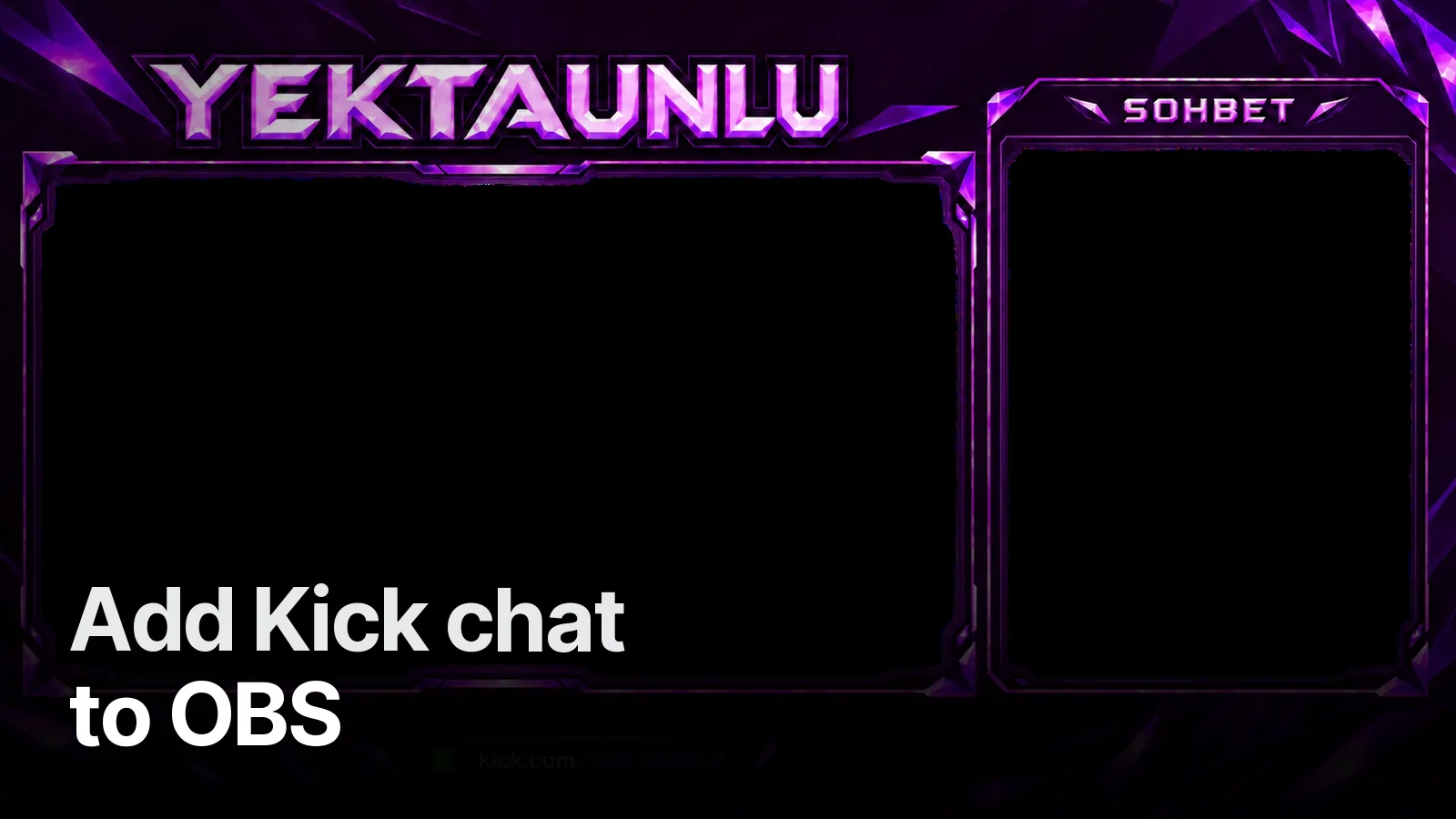
- Small channel name: a short name strip on the top edge is enough. In the Yektaunlu overlay the name sits on a crystal plate at the top centre.
- Same language as the overlay: the camera frame should feel like part of the overlay, not a separate piece. In the xB2TU overlay the blast texture carries into the frame.
For the full overlay: OBS overlay setup. For the animated version: what is an animated overlay. A custom camera frame is included from the entry package in our streamer packages.
Frequently asked
1.What size should a webcam frame be?
On a full 1920×1080 canvas the camera window is usually between 480×270 and 640×360 (16:9). The frame PNG has a transparent centre and borders 12–30 px thick.
2.How do I make the camera round in OBS?
Right-click the Video Capture Device → Filters → add the 'Image Mask/Blend' effect filter. Choose 'Alpha Mask' and pick a black-and-white mask PNG (circle or rounded rectangle). Then put the frame on top.
3.My camera spills outside the frame — what do I do?
Scale the camera 4–6 px larger than the frame window and crop the excess with Alt-drag or the 'Crop/Pad' filter. Keep the frame layer above the camera so no seam shows.
4.Can I use an animated webcam frame?
Yes. It's made as a WebM video with a transparent centre, added as a Media Source with Loop turned on. Slow moves like drifting light or a glint running along the edge add life without distracting from the camera.