How to make a BRB screen: a 'Be Right Back' scene in OBS step by step (2026)
How to make a BRB (Be Right Back) screen and add it in OBS: what goes on it, loop length, muting the mic automatically, hotkeys, countdowns and animated BRB screen examples.
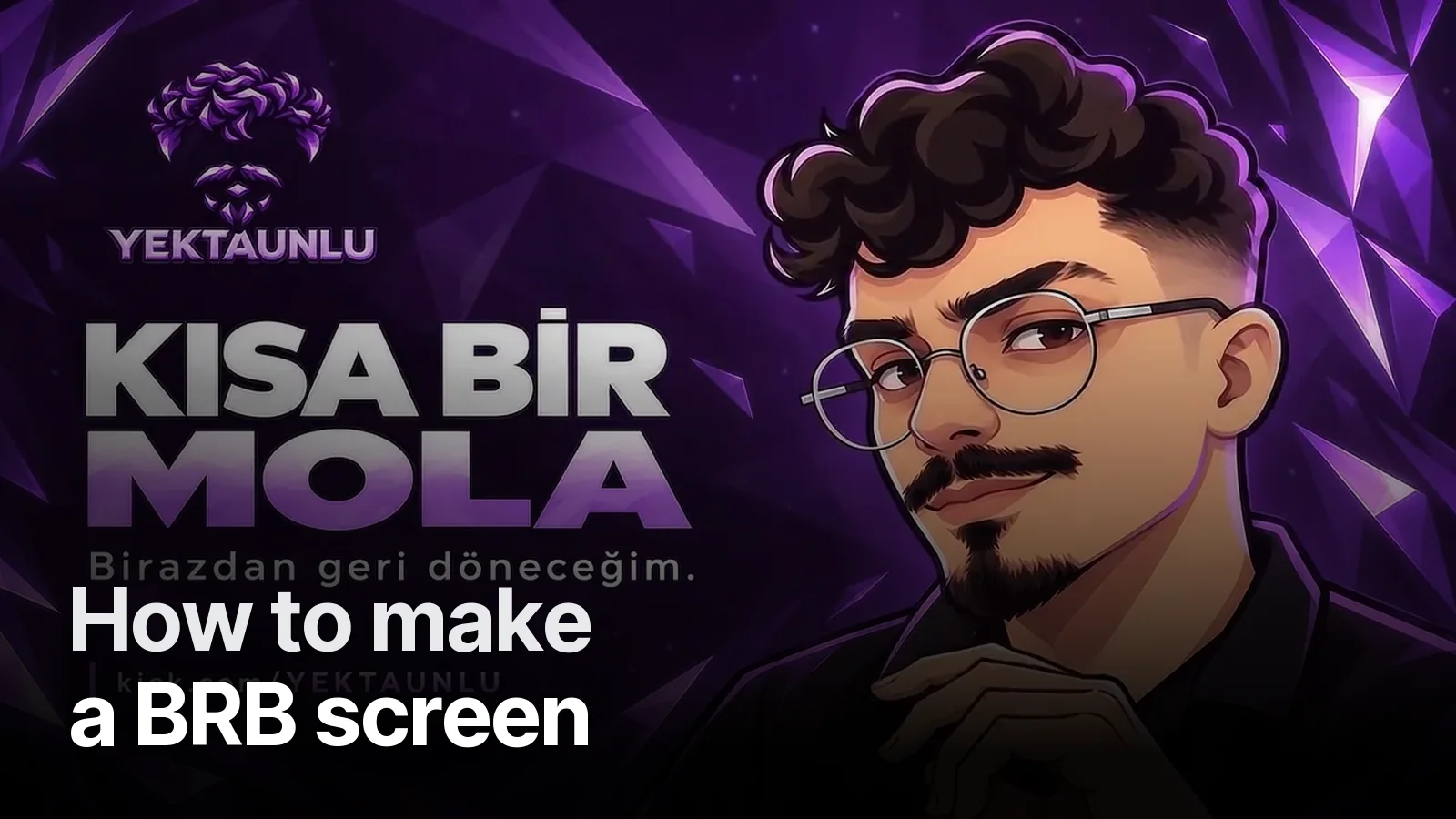
To make a BRB screen, prepare a 1920×1080 image or an 8–15 second looping video (channel name + "Be right back" + link), create a new "BRB" scene in OBS, add the file as a Media Source with Loop ticked, leave the mic out of the scene and give the scene a hotkey. One key switches the scene and cuts your audio.
What goes on a BRB screen
- Title: "Be right back", "Back in a moment", "BRB".
- Channel name / logo: so viewers remember whose stream they're on.
- Channel link: kick.com/yourname — handy when people share clips.
- Motion: character, light, particles, with no visible seam in the loop.
- Optional: countdown, chat area, socials strip, music.
In the Yektaunlu set the character fixes his glasses on the BRB screen; the same character greets and sees viewers off with his own small move on Starting Soon and Stream Ended. All three share one background and only the title and move change — viewers know instantly which screen they're on.
Step by step in OBS
- Scenes →
+→ "BRB". - Sources →
+→ Media Source → pick the BRB video → Loop ✓ → "Restart playback when source becomes active" ✓. - Music as a separate Media Source, around -15/-12 dB.
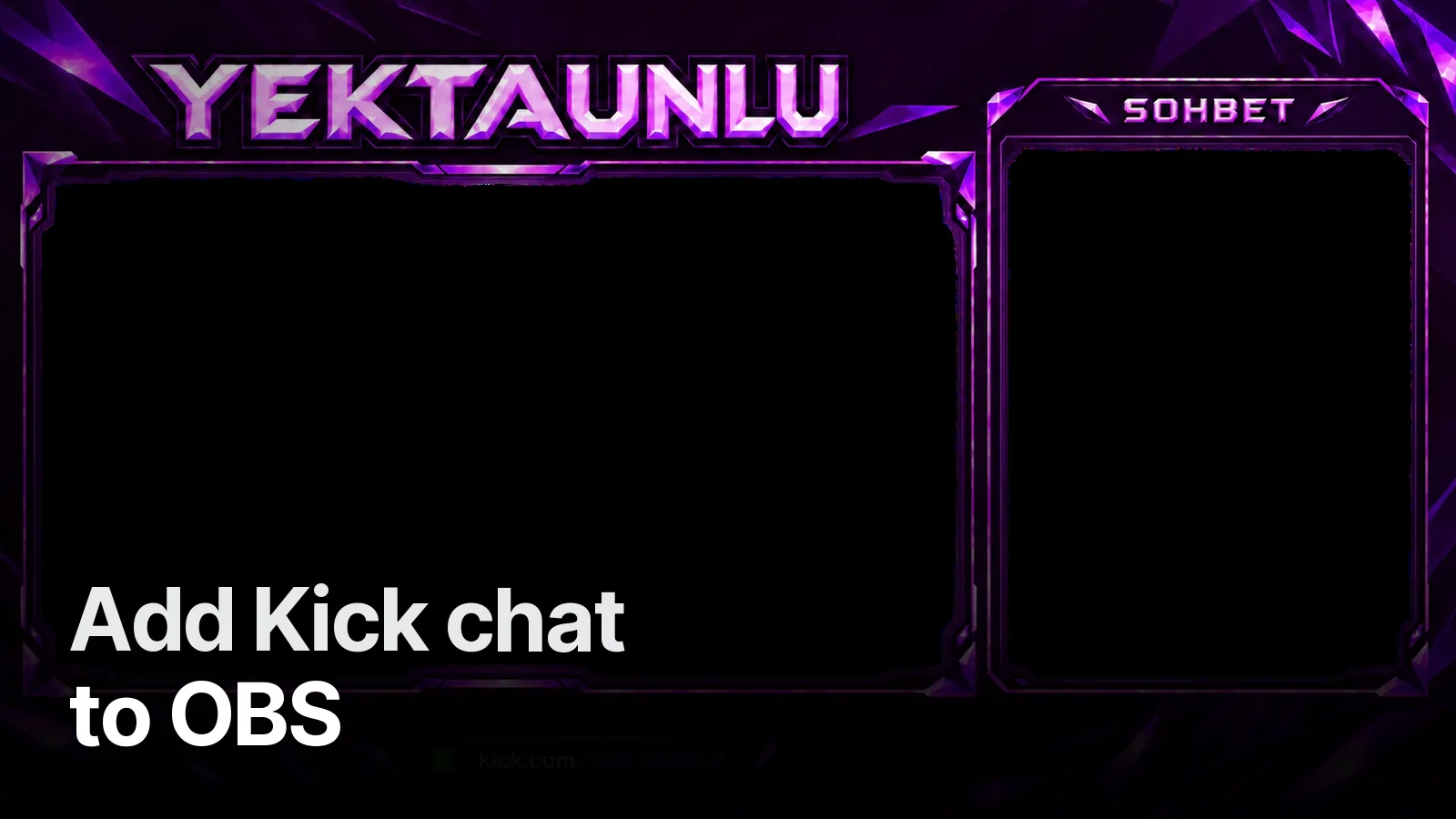
- To show chat, add a browser source: adding Kick chat to OBS.
- Don't add the mic to this scene. If it's a global audio device: Settings → Hotkeys → set a mute/unmute key for the mic.
- Settings → Hotkeys → assign a switch key to the BRB scene (e.g. F9).
- Link scene changes with a stinger: the BRB ↔ game transition becomes your channel's signature.
Adding a countdown
- Simple: Tools → Timer (depending on OBS version) or a Text source with a countdown script.
- Designed: a separate version of the video counting down from 5:00, for a "5-minute break".
Static or animated?
During a break viewers see only this screen for 3–10 minutes. A static image says "the stream stopped"; an animated loop says "still live, back soon". For the Starting Soon screen in detail: Starting Soon screen guide. Animated BRB, Starting Soon and Stream Ended screens come as a trio in our larger streamer packages.
Frequently asked
1.What should a BRB screen say?
Short and clear: 'Be right back' or 'Back in a moment', your channel name and link. Optionally a countdown and a chat area. One big title reads better than a long sentence.
2.How do I mute the mic automatically on the BRB screen?
Don't add the mic to the BRB scene; keep it only in your game/main scene. If your mic is set as a global audio device, assign a mute hotkey instead (Settings → Hotkeys → Mic Mute).
3.Should a BRB screen be animated?
During the break it's the only thing viewers see. An animated loop (the character winks, light drifts) keeps chat alive; with a static image viewers are more likely to close the tab.
4.What format should a BRB screen be?
1920×1080, MP4 (H.264) or WebM, a seamless 8–15 second loop. Add it in OBS as a Media Source with Loop ticked.