How to set up Kick channel branding: profile, banner, offline screen and panels (2026)
Setting up your Kick channel's look from scratch: profile picture, channel banner, offline banner, bio, social links and panels — which size goes where, and in what order.
To set up your Kick channel, upload your profile picture and channel banner from profile icon → Settings → Profile, add the offline banner in your stream settings, fill in your bio and social links, then place panels on the About tab. The order matters: identity first (logo, colour, type), then the pieces.
Kick channel images and sizes
| Piece | Size | Where it shows |
|---|---|---|
| Profile picture | 512×512 px (square, circle crop) | Channel header, chat, recommendations |
| Channel banner | min. 1280×700 px, 1920×1050 recommended | Top of the channel page |
| Offline banner | 1920×1080 px (16:9) | Player while offline |
| Panels | 320 px wide, free height | About tab |
| Emotes | 500×500 px | Chat |
The banner has a safe area: Kick crops it differently depending on screen width, so keep text and faces in the middle band. Full size table with crop examples: Kick stream design and banner sizes.
Step-by-step setup
- Profile picture — Settings → Profile → profile image. Keep ears, hair and logo edges away from the circle crop.
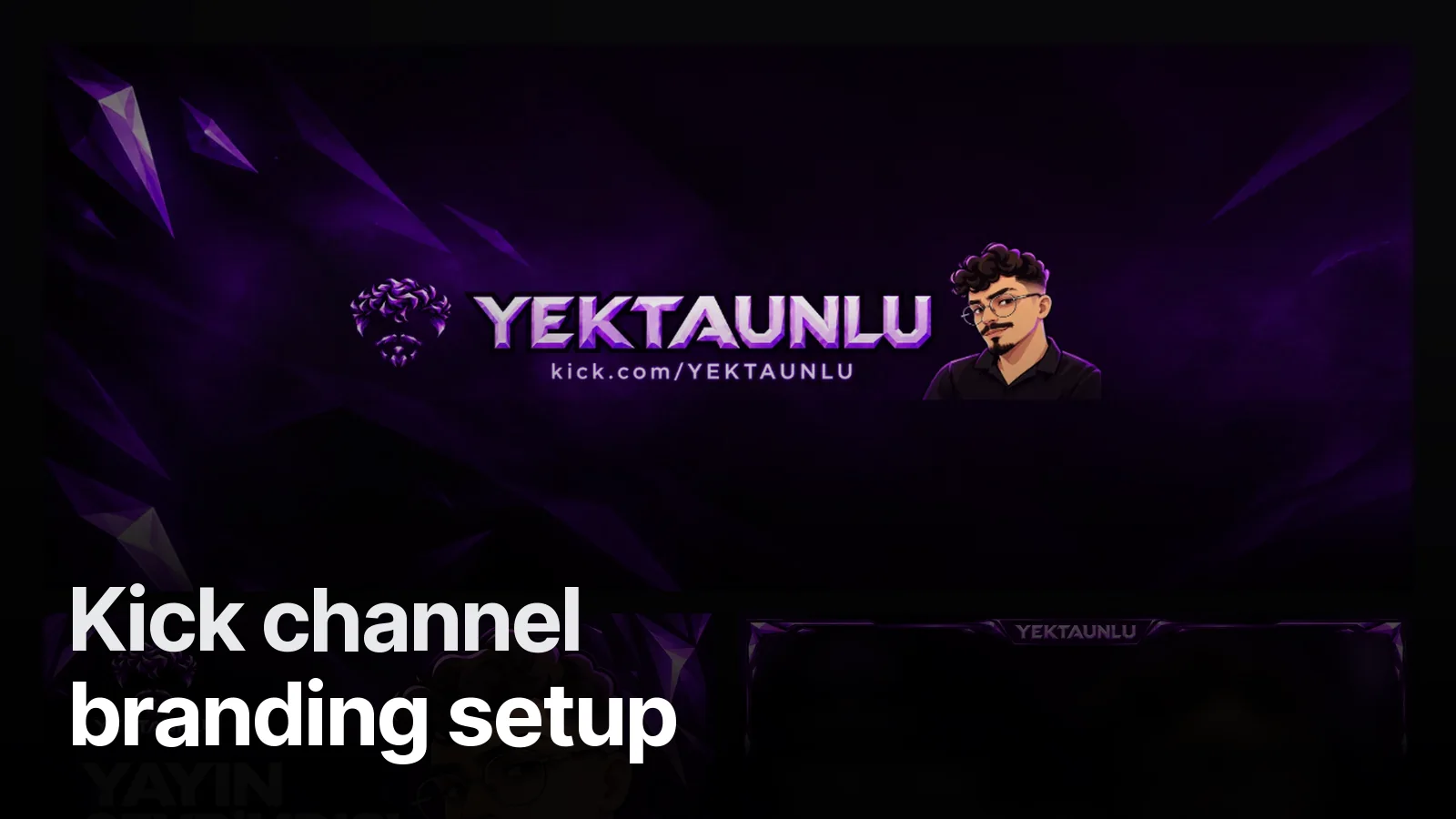
- Channel banner — same screen, banner field. Channel name + kick.com/yourname + character. Check it on phone and desktop separately.
- Offline banner — in the channel/stream settings of the Creator Dashboard. "Currently offline" + stream days + socials.
- Bio — two sentences: what you stream and when. Write it like keywords: "CS2 and chat streams, weekdays 9 pm".
- Social links — Instagram, YouTube, TikTok, Discord, in the social fields of your profile settings.
- Panels — turn on edit mode on the About tab; each panel gets an image, title, description and link. How: how to add panels on Kick.
- Emotes — Creator Dashboard → Emotes. Steps: how to upload emotes on Kick.
The secret of a consistent look: one source
On the channel page viewers see the banner, profile picture, panels and chat emotes at the same time. If they don't come from the same colours, type and character, the page looks pieced together.
For Yektaunlu the whole channel grew from one character and one texture: a curly-haired cartoon portrait in glasses and shards of purple crystal. The banner pairs the character with the logo, the offline screen is a big portrait, the panels share the crystal frame and the emotes are twelve expressions of the same face. Even the logo is an emblem built from hair and beard.
So the order is: logo → palette → banner and offline → panels and emotes → overlay and animated screens.
Post-setup checklist
- Channel page on a phone: is the banner text cut?
- Is the profile picture recognisable at 40 px (chat)?
- Does the offline banner show your stream days/times?
- Do the panel links work?
- Do the emotes read on dark and light themes?
To set up the whole channel at once (banner, offline, overlay, panels, emotes, animated screens), see our streamer packages; every file arrives at Kick-ready sizes.
Frequently asked
1.Where do I change my Kick banner?
On Kick, open Settings from your profile icon; the Profile section has the profile picture and banner fields. Pick the image, check the crop doesn't cut text or faces, and save.
2.What size is the Kick offline banner?
The offline banner is 16:9, prepared at 1920×1080 pixels. It shows in the player while you're offline; your channel name, stream days and socials should read clearly there.
3.What size should a Kick profile picture be?
Square, at least a few hundred pixels; 512×512 is a safe size. Kick crops the profile picture to a circle, so keep the face or logo centred with breathing room at the edges.
4.In what order should I set up my channel's look?
Logo/icon first, then the channel banner and offline screen, then panels and emotes, and finally overlays and animated screens. This order lets colour and type settle early; each piece grows out of the previous one.